Windows desktops can get cluttered surprisingly quickly.
It may start with just a few program shortcuts, but before long, documents you are working on, downloaded files, and project folders are all mixed together on the same screen.
Even after you organize everything, the desktop often ends up looking the same again a few days later.
That is why many people look for desktop organization tools such as Stardock Fences.
Ghostyak Boxes started from the same kind of frustration.
Organizing the desktop by dividing it into separate areas is convenient, but there was one thing I wanted to handle differently.
I did not want organizing my desktop to require changing the actual locations of my original files.
That idea led to Ghostyak Boxes.
At first glance, it may look similar to Fences because it lets you create boxes on the desktop and organize items inside them. However, the way it handles files is quite different.
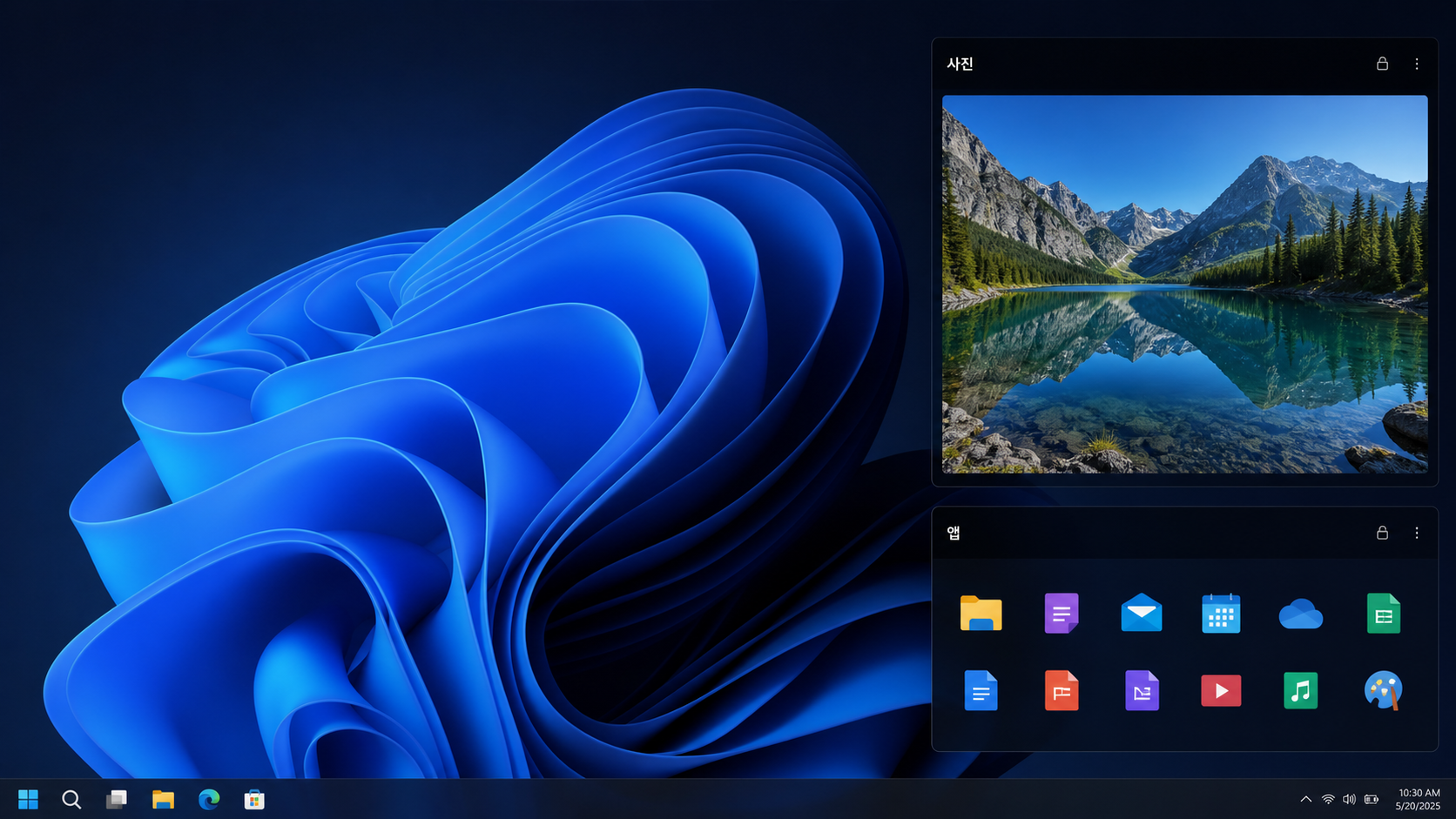
Boxes Does Not Move Files Into a Box
This is the first thing I want to explain about Ghostyak Boxes.
Boxes does not physically move your desktop files into its boxes.
Your original files stay exactly where they are. Boxes simply connects to those files and folders using shortcuts.
For example, suppose you add a file from your Documents folder to a Work box.
The file itself is not moved somewhere else.
It remains in the Documents folder, and Boxes simply creates an item that lets you access it from the box.
In other words,
Boxes is less about organizing files themselves and more about organizing how you access them.
This is one of the key differences between Ghostyak Boxes and Stardock Fences.
Why Is Keeping the Original File Location Useful?
At first, this may seem like a small difference.
But when you work with many files, it can be surprisingly convenient.
For example, imagine you have a project folder like this:
D:\Projects\GhostyakYou do not have to move your project files somewhere else just to organize them visually.
You can keep the original project structure exactly as it is and simply add shortcuts to Boxes.
The same applies to work documents.
Documents
└─ 2026
   └─ Project A
You can keep your existing folder structure intact while collecting only the files you currently use most often in a Current Work box.
When the work is finished, simply remove them from the box.
Nothing changes in the original files.
That is why I personally think of Boxes less as a file manager and more as a desktop shortcut workspace.
Keep Only What You Need on the Desktop
Using Boxes is straightforward.
Create the boxes you want on the desktop, then add the files, folders, and applications you use frequently.
For example:
- Current Work
- Development
- Frequently Used Apps
- Work Documents
- Reference Materials
- Temporary Work
- Photos
The important point is that you can treat the actual file locations and the layout of Boxes as two separate things.
Your folder structure can remain optimized for file management,
while Boxes can be arranged in whatever way makes your current workflow more convenient.
It is a bit like keeping all your books on a bookshelf while placing only the books you currently need on your desk.
Familiar to Stardock Fences Users, but Different in an Important Way
If you have used Stardock Fences before, the idea of dividing the desktop into separate box-like areas will probably feel familiar.
Ghostyak Boxes also lets you create multiple areas on the desktop and place them wherever you want, with adjustable sizes.
However, the underlying approach is different.
Fences is mainly designed to organize icons that already exist on the desktop, while Boxes lets you connect the files and folders you need to boxes regardless of where the originals are stored.
This also makes it easier to use the same file or folder in different work contexts.
For example, the same project folder could appear in both a Development box and a Current Work box.
There is no need to copy or move the original folder.
You simply create shortcuts in each box.
Move and Resize Boxes Freely
Boxes can be moved anywhere on the desktop and resized as needed.
You can make frequently used boxes larger and keep less frequently used boxes smaller.
You can also collapse a box when you do not need it, or lock it in place so that it is not moved accidentally.
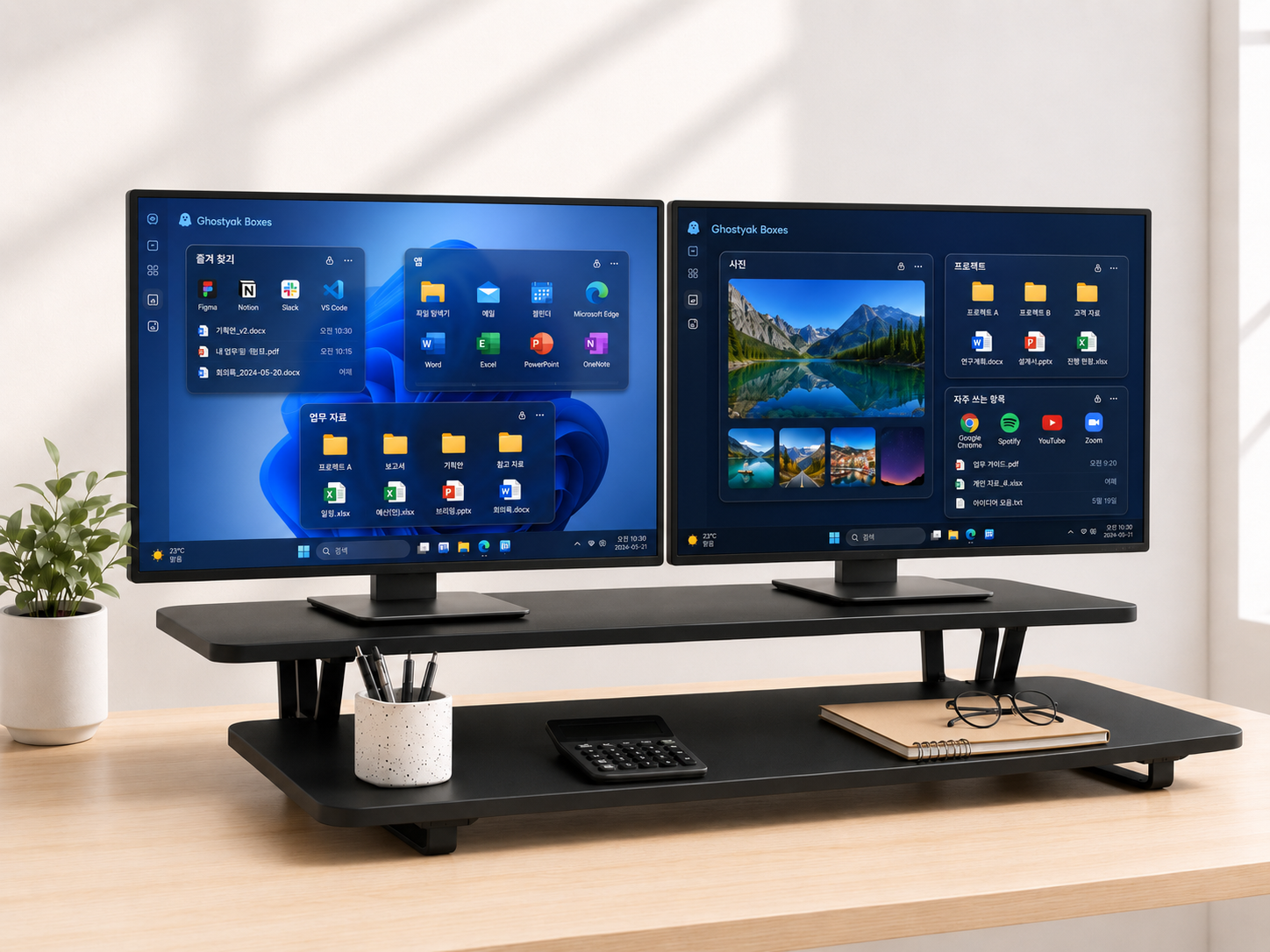
This can be especially useful on large or ultrawide monitors.
For example, you could place your current work files on the left side of the screen and frequently used applications and reference materials on the right.
The basic idea behind Boxes is to turn unused desktop space into an actual workspace instead of just a place to store icons.
Even More Useful With Dual Monitors
Many people use a laptop with an external monitor.
You might use a dual-monitor setup at the office and then use only the laptop screen when working elsewhere.
The problem is that your workspace layout can change whenever a monitor is connected or disconnected.
Ghostyak Boxes is designed with this kind of setup in mind and can remember the position and size of each box for different display configurations.
You can keep one layout for a dual-monitor setup and another for the laptop screen alone.
This means you do not have to rearrange your boxes every time your display environment changes.
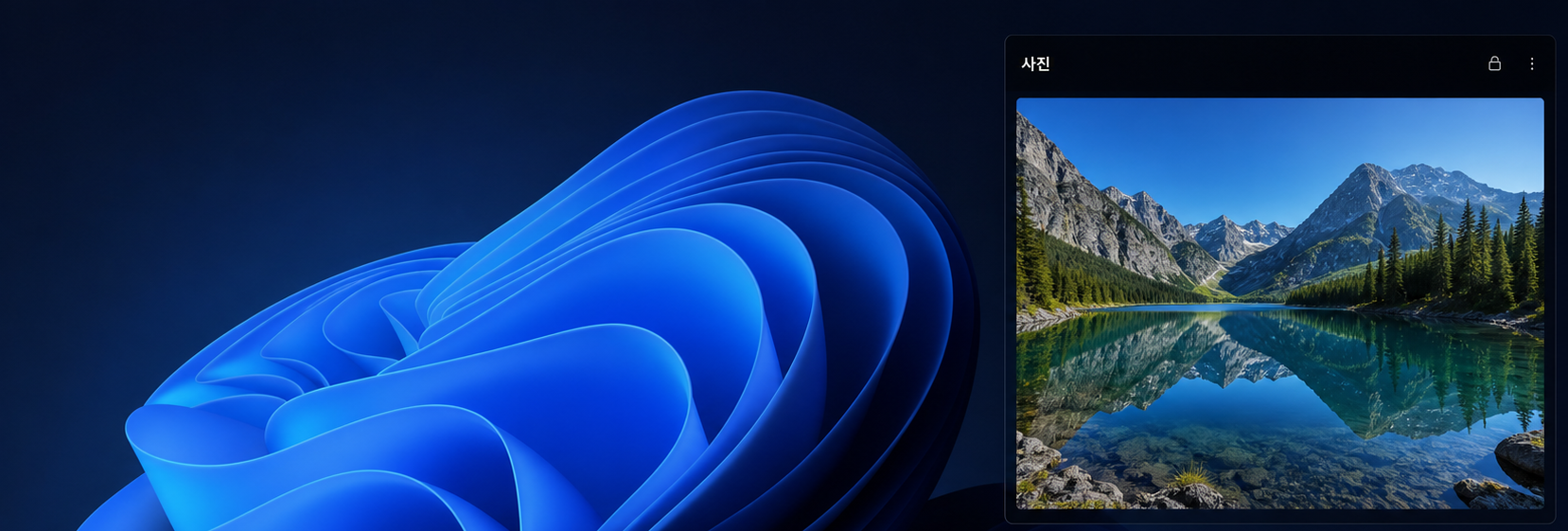
You Can Also Use a Box as a Photo Album
I did not want Boxes to be limited to organizing icons.
So I also added a feature that lets you use a box like a photo viewer.
When you connect a folder containing photos, the images can be displayed inside the box, and multiple photos can be viewed as a slideshow.
For example, you could arrange your desktop like this:
Current work on the left, frequently used applications in the center, and family or travel photos in a smaller box on the right.
There is no reason every bit of unused desktop space has to be reserved for files and icons.
I plan to continue expanding Boxes so that boxes can be used for more purposes like this in the future.
Stardock Fences vs. Ghostyak Boxes
Both applications may look similar because they help organize the Windows desktop.
However, the way they are used is different.
| Division | Stardock Fences | Ghostyak Boxes |
| Basic concept | Organizes desktop icons into separate areas | Connects the files and folders you need to boxes |
| File management approach | Focused on desktop icons | Focused on shortcuts |
| Original file location | Closely tied to the desktop layout | Original location remains unchanged |
| Using the same item in multiple places | Based on desktop placement | Can be connected to multiple boxes |
| Move and resize boxes | Supported | Supported |
| Collapse and lock | Supported | Supported |
| Layout by display configuration | Supported features available | Remembers box positions and sizes for each display configuration |
| Photo display | Not a primary use case | Photo boxes supported |
| Product maturity | Long-established commercial product | Currently under development |
Ghostyak Boxes therefore started from a problem similar to the one Fences solves, but takes a different approach from the very way files are managed.
Who Might Find Boxes Useful?
Boxes may be particularly useful for people who prefer not to move files from their original locations.
For example:
- You are looking for an alternative to Stardock Fences
- You want to keep your existing folder structure unchanged
- You want to organize your desktop without moving original files
- You work on multiple projects at the same time
- You want quick access to only the files and folders you use frequently
- You want to make better use of a dual-monitor workspace
- You want to use the Windows desktop more like a work dashboard
If you are a developer, you can add project folders to Boxes without moving them from their original locations.
If you do a lot of office work, you can access active work documents scattered across multiple folders from a single box.
When a task is finished, simply remove the shortcut from Boxes.
There is no need to reorganize the original files afterward.
Separate File Organization From Workspace Organization
This was one of the most important ideas behind Ghostyak Boxes:
Where files are stored and where you work with them do not have to be the same place.
Keep your files in a folder structure that makes sense for long-term management,
and place only what you currently need on the desktop.
Boxes connects those two worlds.
This lets you organize your desktop without changing your existing folder structure.
Personally, I find this approach more useful as the number of files grows.
Looking for a Fences Alternative? Give Boxes a Look
Stardock Fences is one of the best-known tools for organizing the Windows desktop.
Ghostyak Boxes started from a similar desire to make the desktop more convenient to use.
However, Boxes takes a different approach by using shortcuts instead of moving the original files.
You can freely change the layout of your boxes while keeping your actual files and folders exactly where they are.
In the future, I also plan to expand boxes beyond simple icon organization with features such as the photo viewer and other types of content.
Ghostyak Boxes is still under development, so there are areas that still need improvement.
But the direction is clear.
Keep your files where they are.
Arrange your desktop around the way you work.
If you have been looking for something similar to Stardock Fences but prefer an approach that does not move your original files, take a look at Ghostyak Boxes.
Ghostyak Boxes
- Supports Windows 10 / Windows 11
- Shortcut-based file and folder management
- Keeps original file locations unchanged
- Create and manage desktop boxes
- Move and resize boxes
- Collapse and lock boxes
- Restore layouts for different display configurations
- Photo viewer and slideshow
Official Website
https://ghostyak.com
'english' 카테고리의 다른 글
| Windows Desktop Organizer - Ghostyak Boxes (0) | 2026.08.23 |
|---|---|
| Introducing GhostyakBoxes (0) | 2026.08.23 |

